








Today we are releasing Connectors in Studio to unblock developers building highly customised AI applications grounded in enterprise data. All built-in connectors, as well as custom MCPs, are now available via API/SDK to be used with all model and agent calls.
We are also introducing direct tool calling, giving developers precise control over how and when tools are invoked, without authentication barriers getting in the way of testing and iterating. In addition, you can now implement human-in-the-loop approval flows, allowing secure review and confirmation before tool execution, ensuring both flexibility and governance.
Programmatic access for creating, modifying, listing and deleting your connectors but also listing their tools and directly running them.
All connectors are centrally registered making them available across Mistral apps: LeChat and AI Studio (with Vibe coming soon).
Usage via Conversation API, Completions API, and Agent SDK can now facilitate complex workflows and integration with enterprise systems like CRMs, knowledgebases & productivity tools.
Integrations that live in the platform, not in your code
Building enterprise AI agents is getting easier. The harder part is everything around them: tracking down the right API docs, writing and maintaining tool functions, building integrations, setting up OAuth, handling token refresh, and debugging edge cases like broken pagination.
Because of this, teams keep rebuilding the same integration layer. Even within the same company, similar integrations are often implemented multiple times in arbitrary code, leading to security risks, lack of traffic observability, and duplication of work.
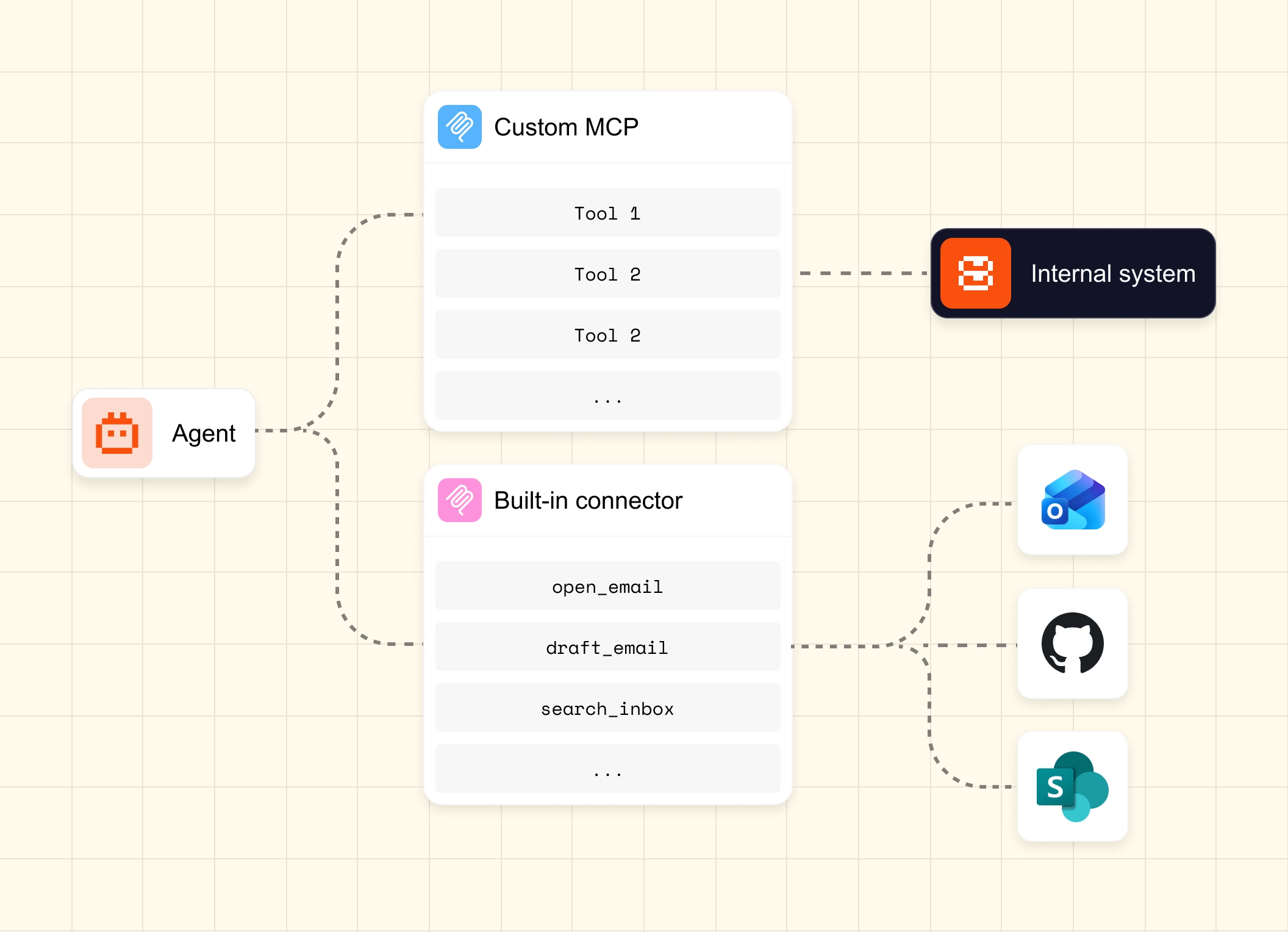
A connector solves this by packaging an integration into a single, reusable entity using the MCP protocol.
my_connector = client.beta.connectors.create( name="salesforce-crm", description="Salesforce CRM — accounts, contacts, opportunities", server="https://your-mcp-server.internal/salesforce", visibility="shared_workspace", oauth_config={ "client_id": os.environ["SALESFORCE_CLIENT_ID"], "scopes": ["read_accounts", "read_contacts"], "redirect_uri": "https://your-app.internal/oauth/callback", },)Once registered, the custom MCP connector is discoverable, governed & monitored in Studio and becomes a native tool for any conversation, agent, or workflow without rewriting integration logic, without re-implementing auth, without duplicating it across teams. Set up once, run it all the time, everywhere. Attaching a connector to any conversation takes one line:
response = client.beta.conversations.start_async( model="mistral-medium-latest", inputs="Which enterprise accounts renewed last quarter?", tools=[{"type": "connector", "connector_id": "salesforce-crm"}],)A runnable golden path
Let’s build an agent for a multi-step workflow based on reasoning across sources given agent’s secure connectivity to GitHub, public repo content & docs, and live data from the web. The agent can understand intent, analyse code, and propose changes alongside other common use cases like generating tests, refactoring, identifying inefficiencies, bugs or vulnerabilities.
Prerequisites
pip install mistralaiexport MISTRAL_API_KEY="your-api-key"client = Mistral(api_key=os.environ["MISTRAL_API_KEY"])1 - Create a connector for a public remote MCP
To query and explore code bases, we will leverage the DeepWiki remote server which provides an MCP interface to API/tool endpoint. This way the agent can explore the content and documentation without scraping docs manually or loading whole repos.
my_custom_mcp = client.beta.connectors.create_async( name="my_deepwiki", description="DeepWiki MCP for code repository exploration", server="https://mcp.deepwiki.com/mcp", visibility="shared_workspace",)Registering the MCP server once allows users to reuse it across conversations, agents, or direct tool calls. This is the entry point for any custom MCP flow. For a comprehensive example of how to manage built-in and custom connectors see cookbook: Connectors Management.
2 - Create agent
The agent should also be able to connect to GitHub and the web; users don’t need to create those connectors as they are already built into Mistral.
Note that a connector can expose dozens of tools. If users want to exclude potentially damaging actions, tool_configuration controls the tool availability without modifying the connector itself. More details can be found in Cookbook: Using Connectors in Conversations.
my_agent = client.beta.agents.create_async( name="deepwiki_agent", description="Agent for code repository exploration", model="mistral-small-latest", instructions="""\ You are an Open-Source Software Auditor. \
When asked to vet a library or repository, you MUST perform ALL of the following tasks:
## Final verdictBased on all three analyses, give a clear recommendation:- **SAFE TO ADOPT** — no major concerns- **ADOPT WITH CAUTION** — some concerns to be aware of- **AVOID** — significant risks identified
Always be thorough and cite your sources.\""",    tools=[        {"type": "web_search"},        {            "type": "connector",            "connector_id": "github",            "tool_configuration": {"exclude": ["delete_file"]},        },        {"type": "connector", "connector_id": "my_custom_mcp.name"},    ],)
response = await client.beta.conversations.start_async(    agent_id=my_agent.id,    inputs=[        {            "role": "user",            "content": "Please perform full audit on repo pallets/flask",        }    ],)
Direct tool calling
Not every workflow needs the model to decide when and how tools are invoked. For a more deterministic experience, users can now call connectors directly.
result = await client.beta.connectors.call_tool_async( connector_id="my_deepwiki", tool_name="read_wiki_structure", arguments={"repoName": "sqlite/sqlite"}, ) print(f"Tool output:\n{result.content}")This is especially useful for debugging and pipeline-style automation which limits ambiguity. For the full pattern, see cookbook: Connector tool calling.
When a human needs to be in the loop
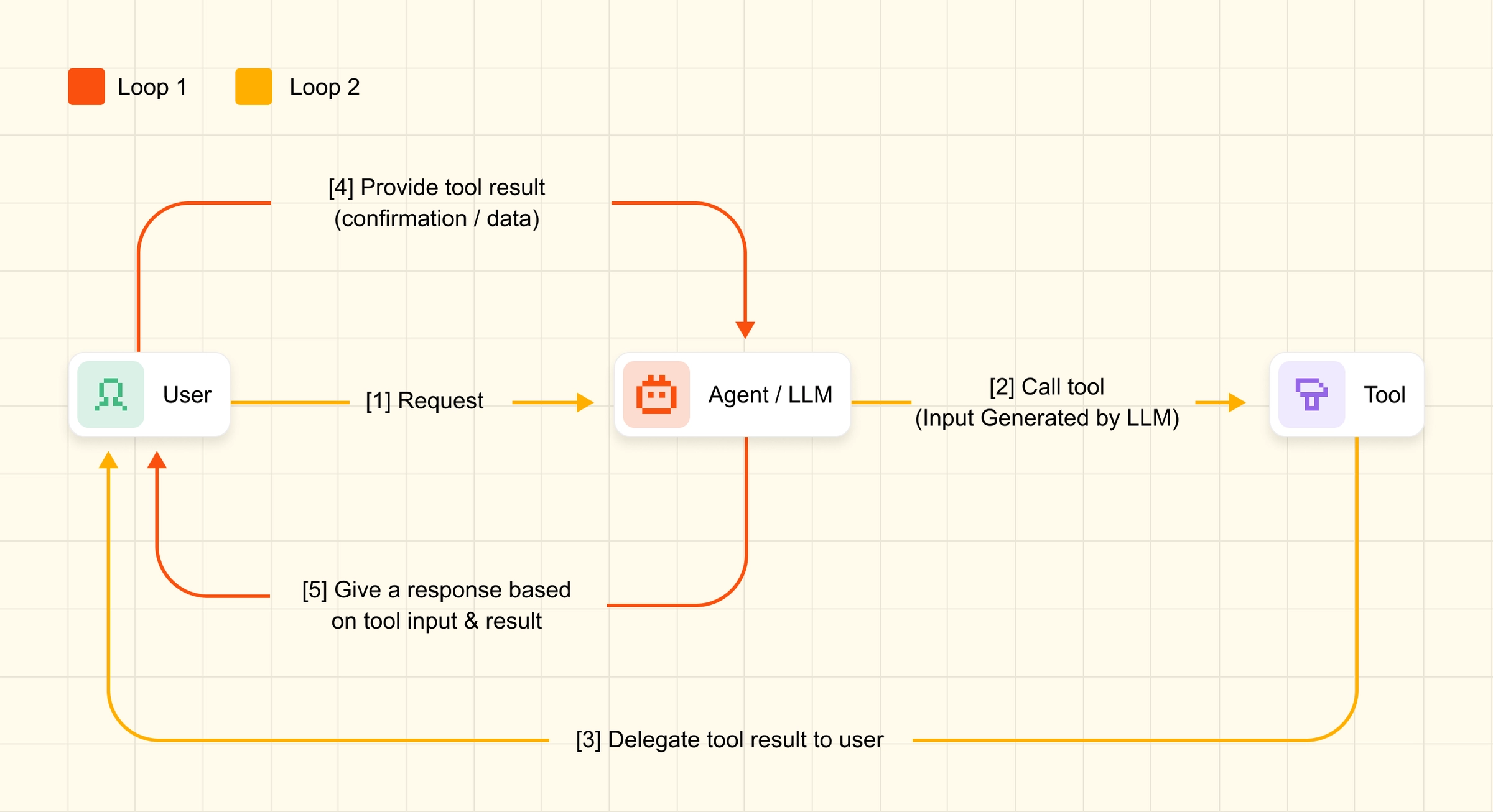
Some actions should not execute without explicit approval. requires_confirmation pauses execution and hands control back to your application before the tool runs:
{ "type": "connector", "connector_id": "gmail", "tool_configuration": { "include": ["gmail_search"], "requires_confirmation": ["gmail_search"] }}The model proposes, the user application decides whether to proceed. The boundary between AI judgment and human judgment is explicit and written in code. For the full approval flow, including the pending tool call and resume step, see cookbook: Human-in-the-loop Confirmation.
Start building
You can now use Connectors in Studio, in Public Preview. Start building today by visiting the Studio console: https://console.mistral.ai/build/connectors
Documentation on the release
Cookbooks on various common usage patterns